Change the words on your pages
Update text on one or more pages, check it, then publish everything in one go.
Step by step
-
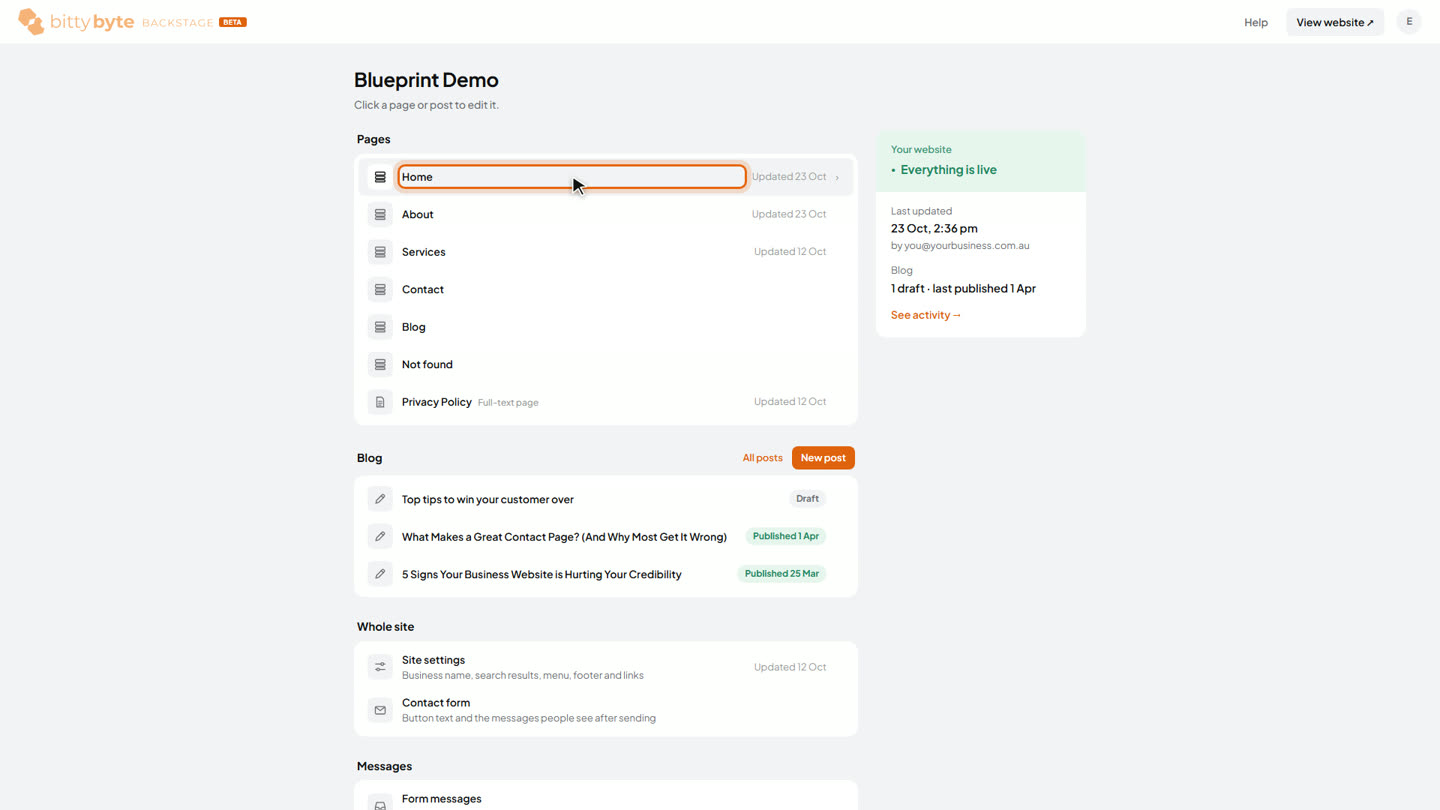
Your dashboard lists the pages on your website. Click a page to edit it.
-
The page opens in the editor, looking just like your website. Nothing goes live until you publish.

-
Click any text to change it.

-
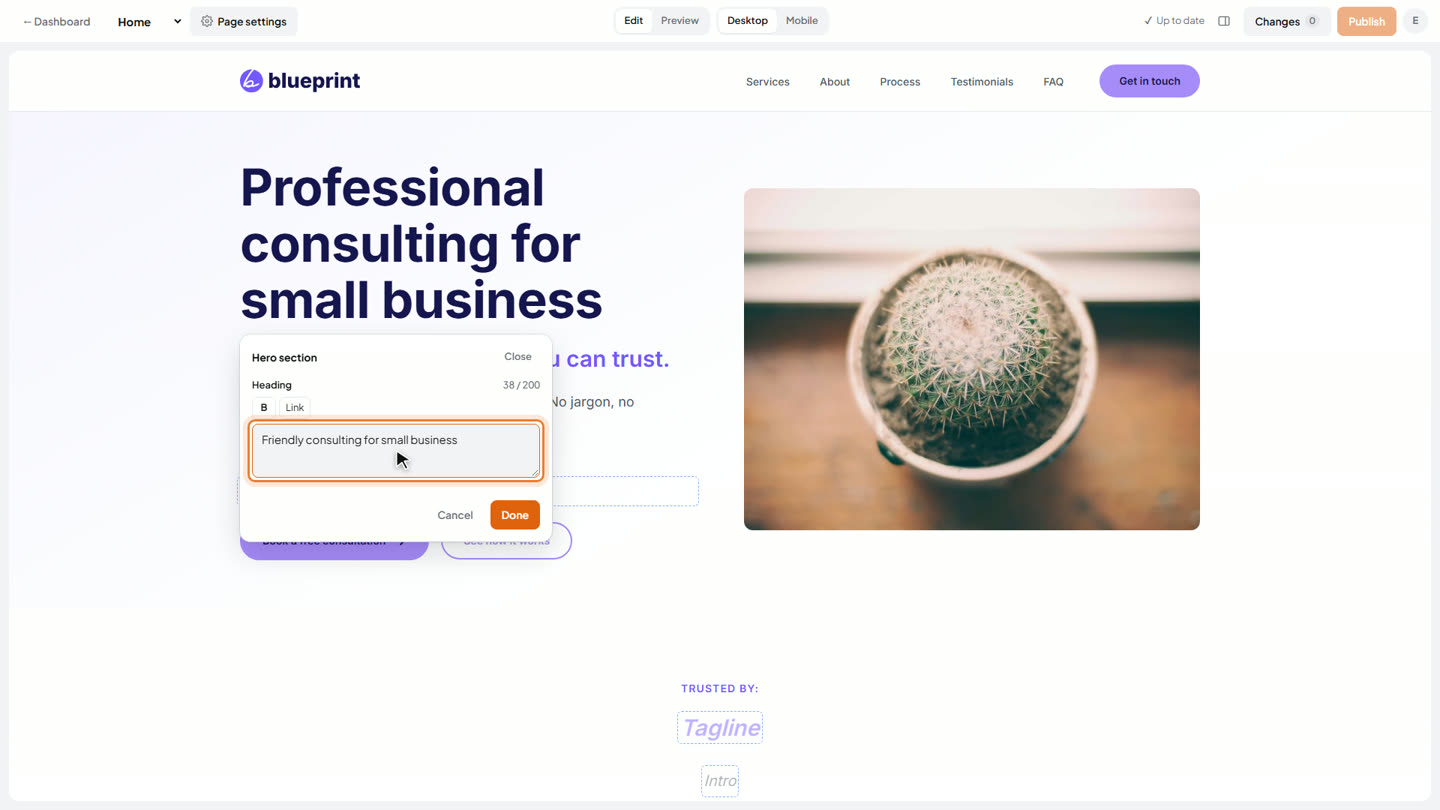
Type the new wording in the box.
-
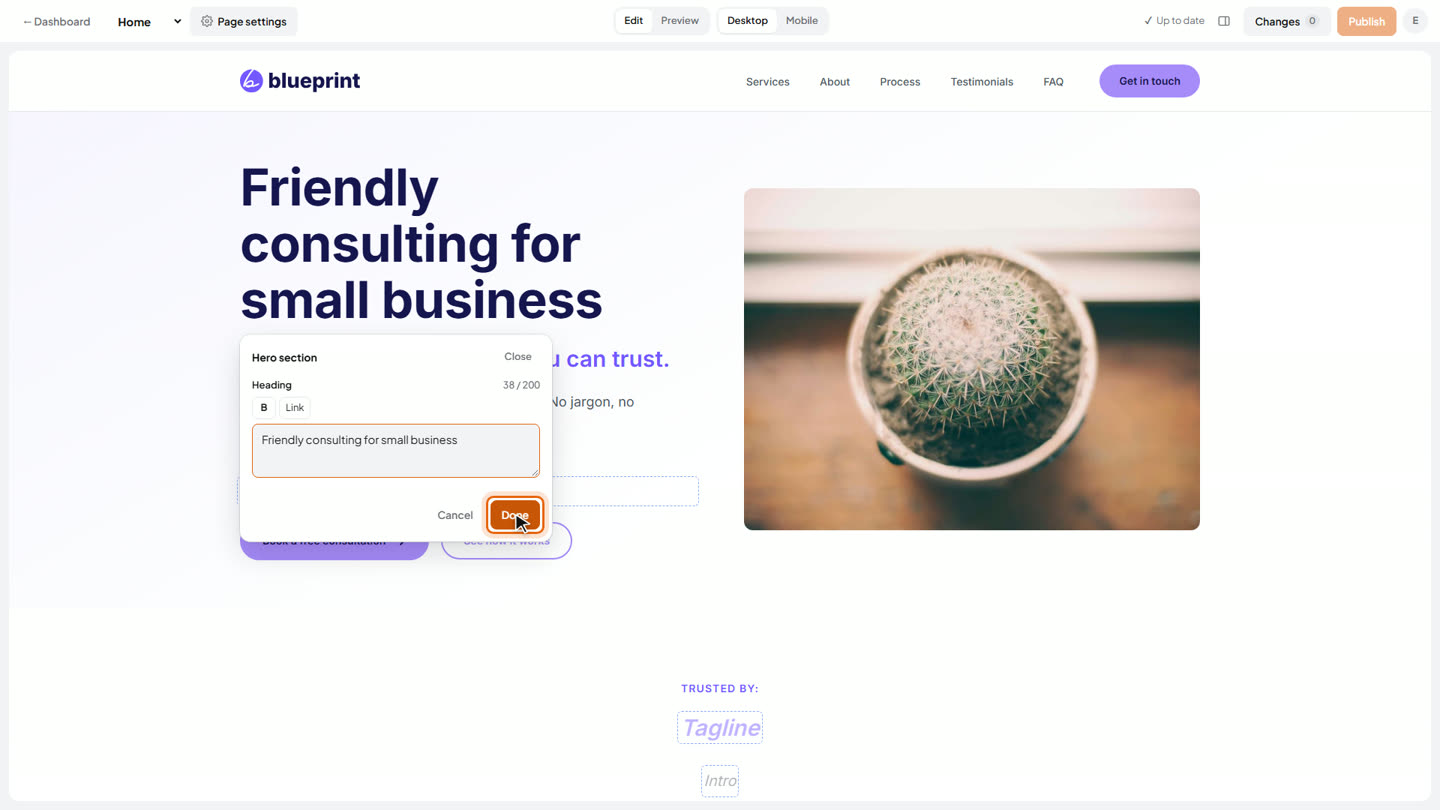
Click Done. The page shows the change straight away.
-
Changes save automatically as a draft, so you can move on to another page.

-
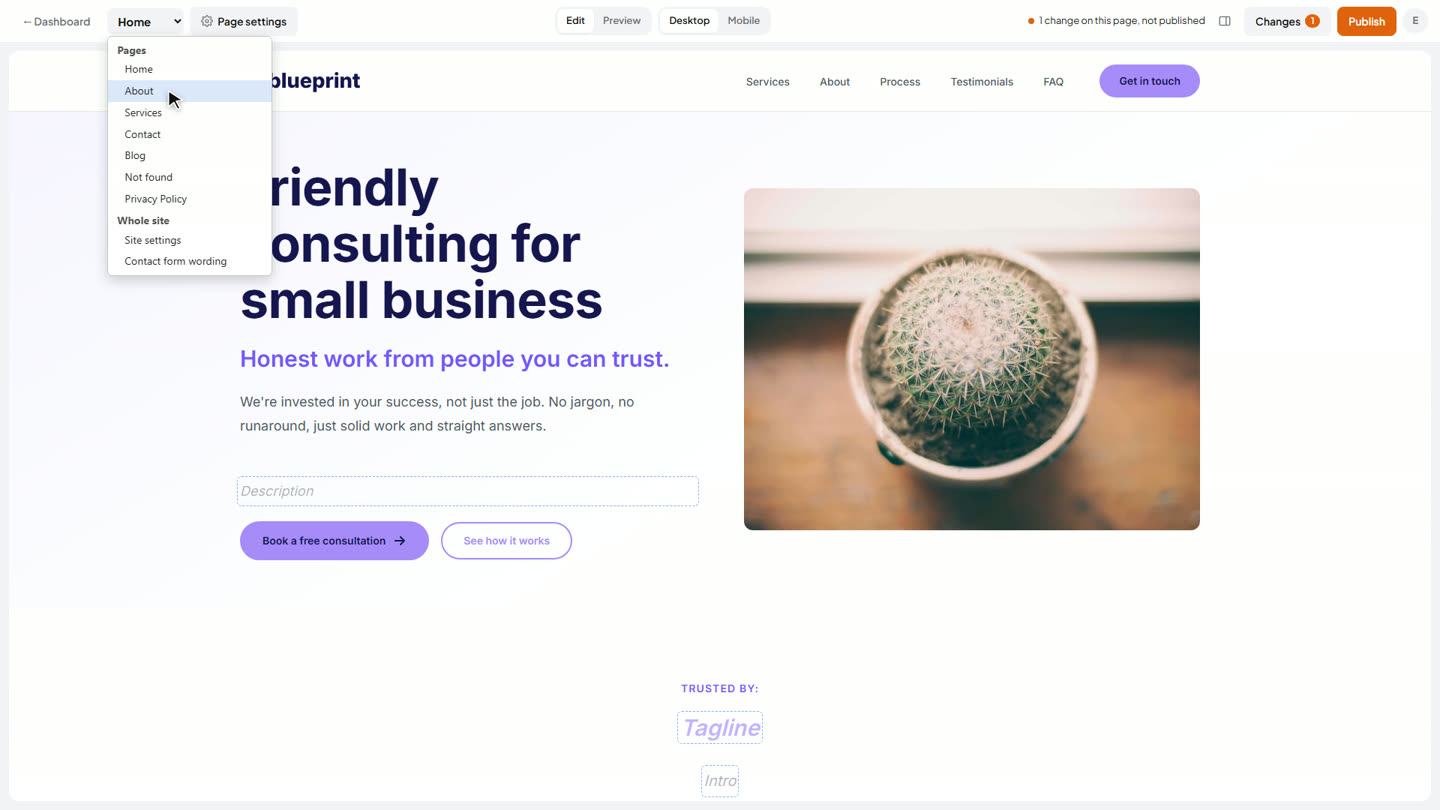
Open the page menu and choose another page.
-
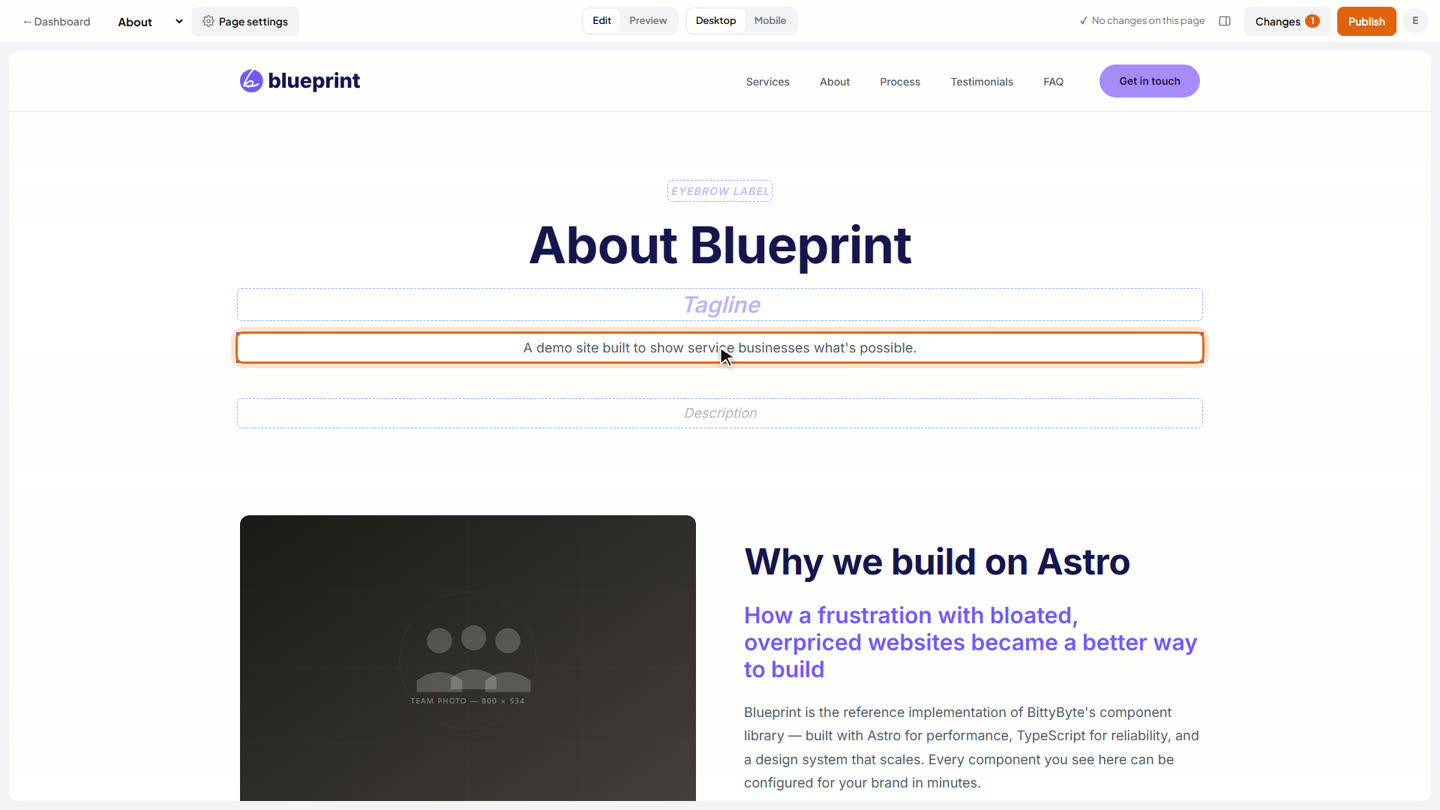
Change some wording here too, then click Done.
-
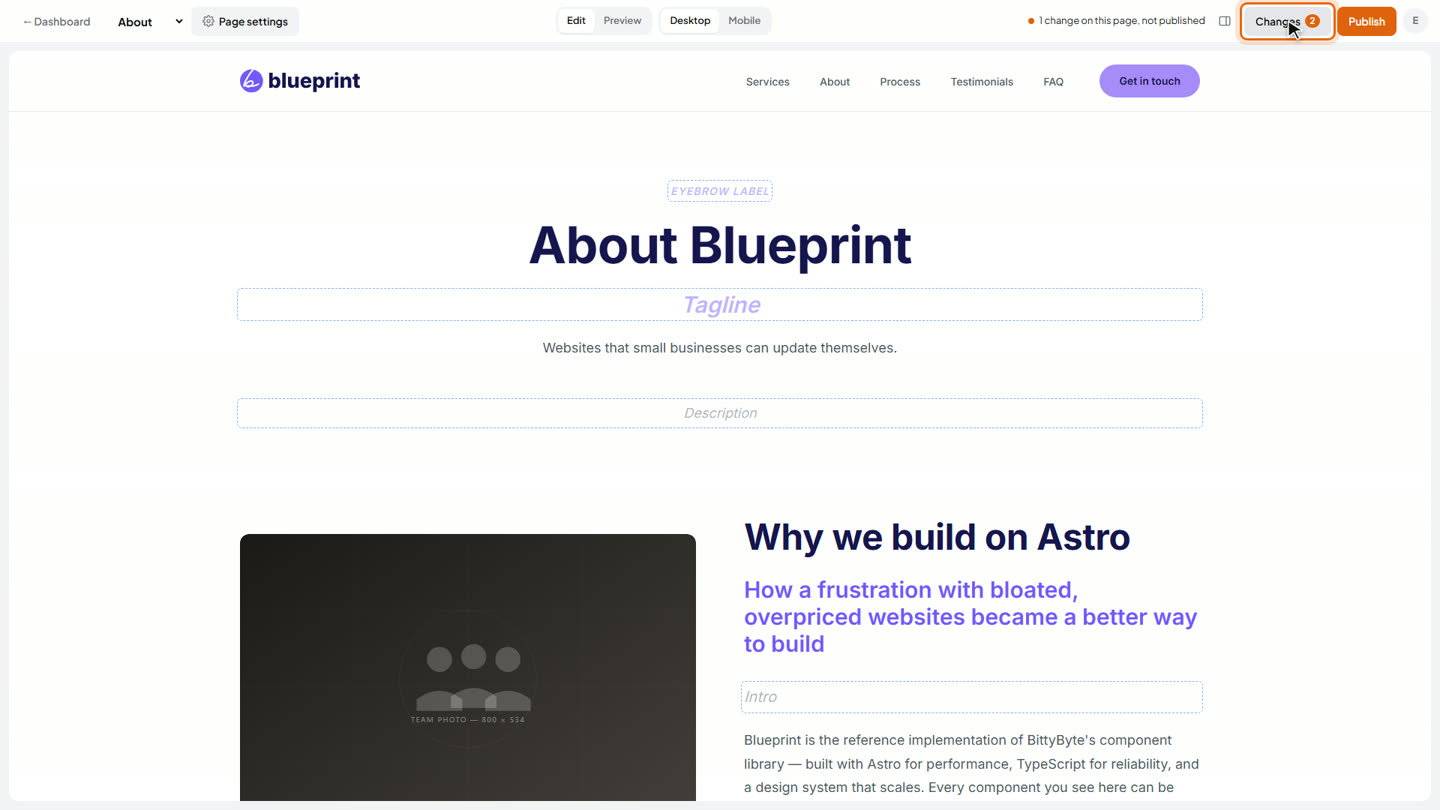
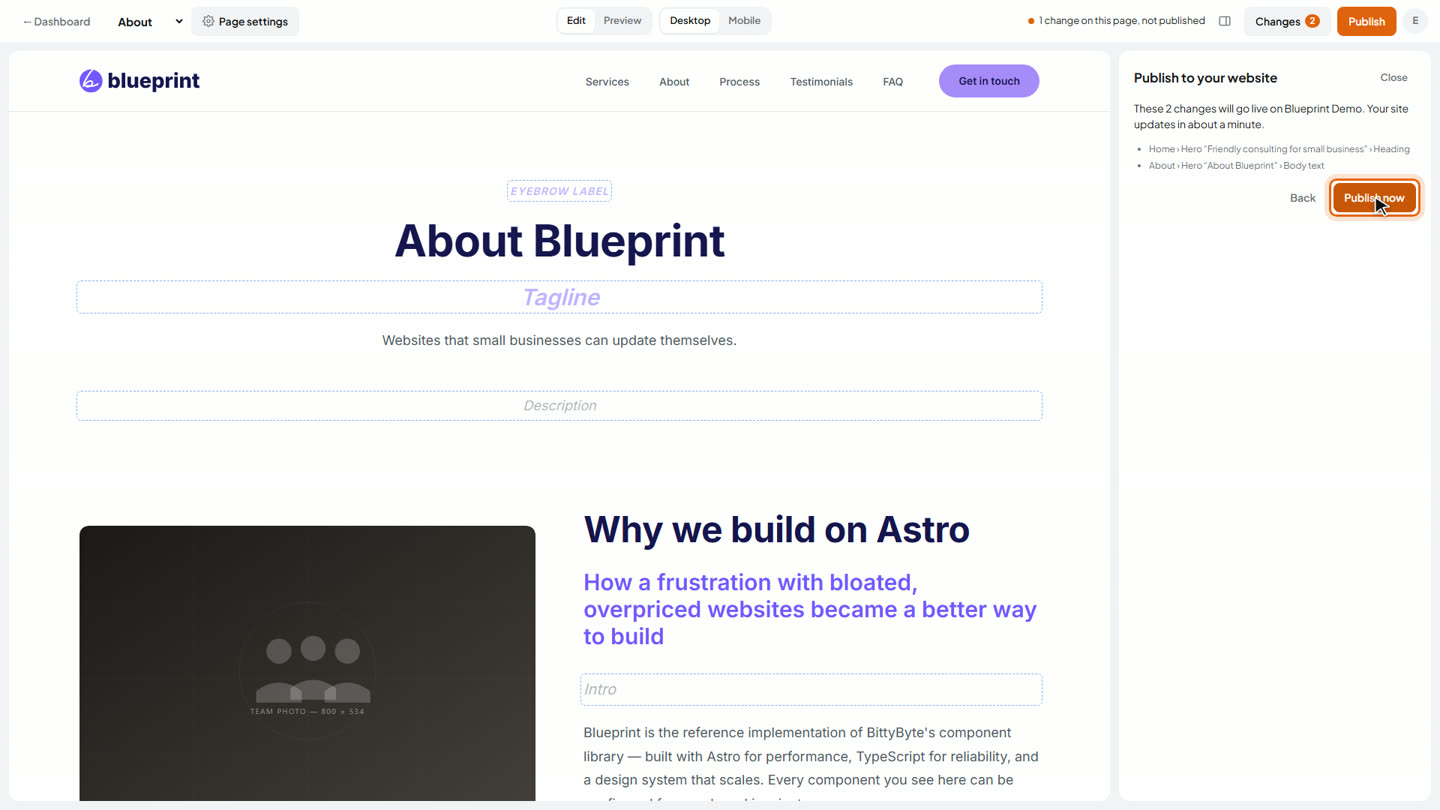
The Changes button now shows 2, one on each page.
-
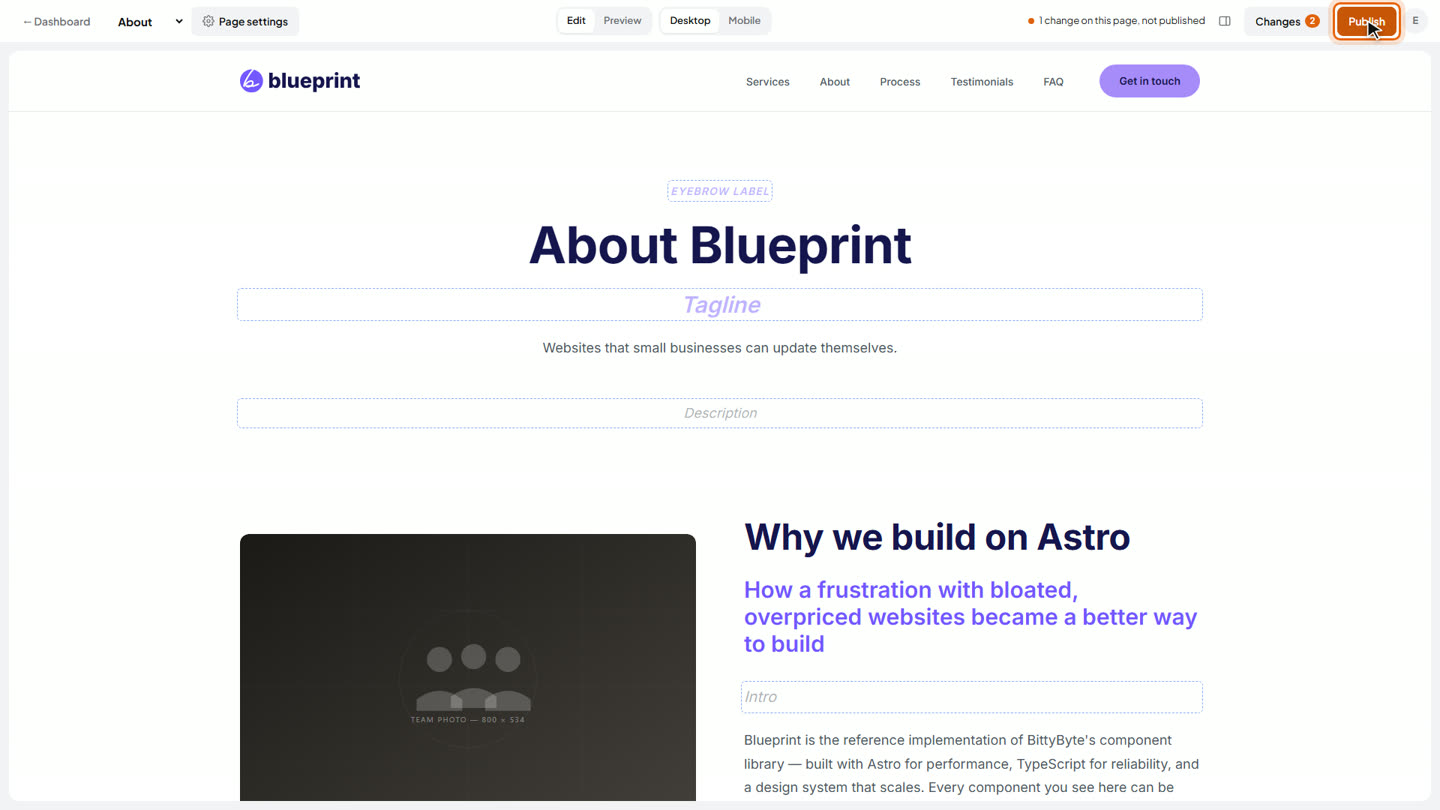
When you’re ready, click Publish.
-
Both changes are listed. Click Publish now to send them live together. Publishing takes a moment.
-
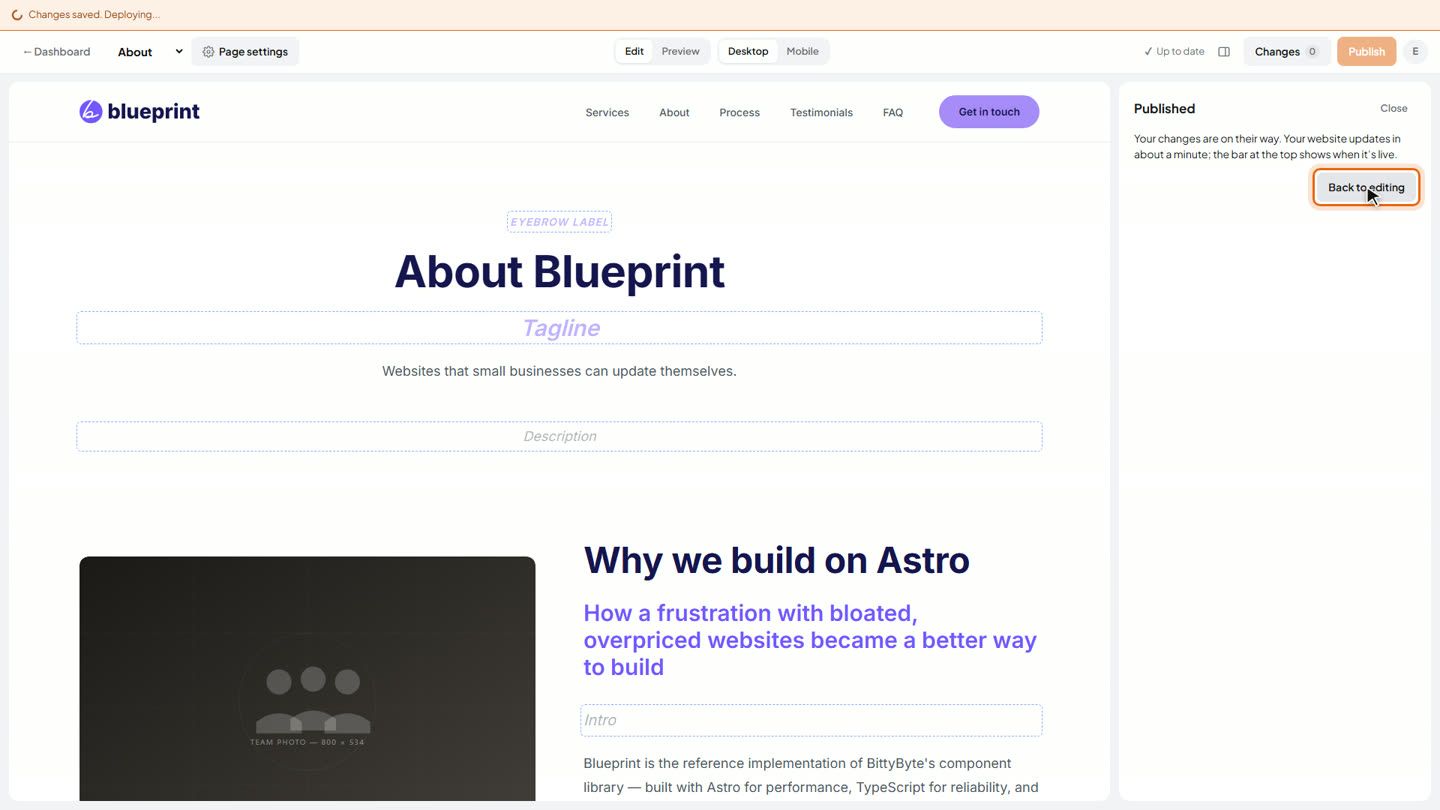
Published. Your website updates in about a minute, and you can keep editing other pages while you wait.